To maintain the security of your Green-Gps account, it is important to regularly change your password. Green-Gps allows you to update your password directly from your user profile. Make sure to follow security policies when creating a new password.
You can access the password change option from the "Account " section in the user menu. Once there, under ' Account information', click on "" next to Password.
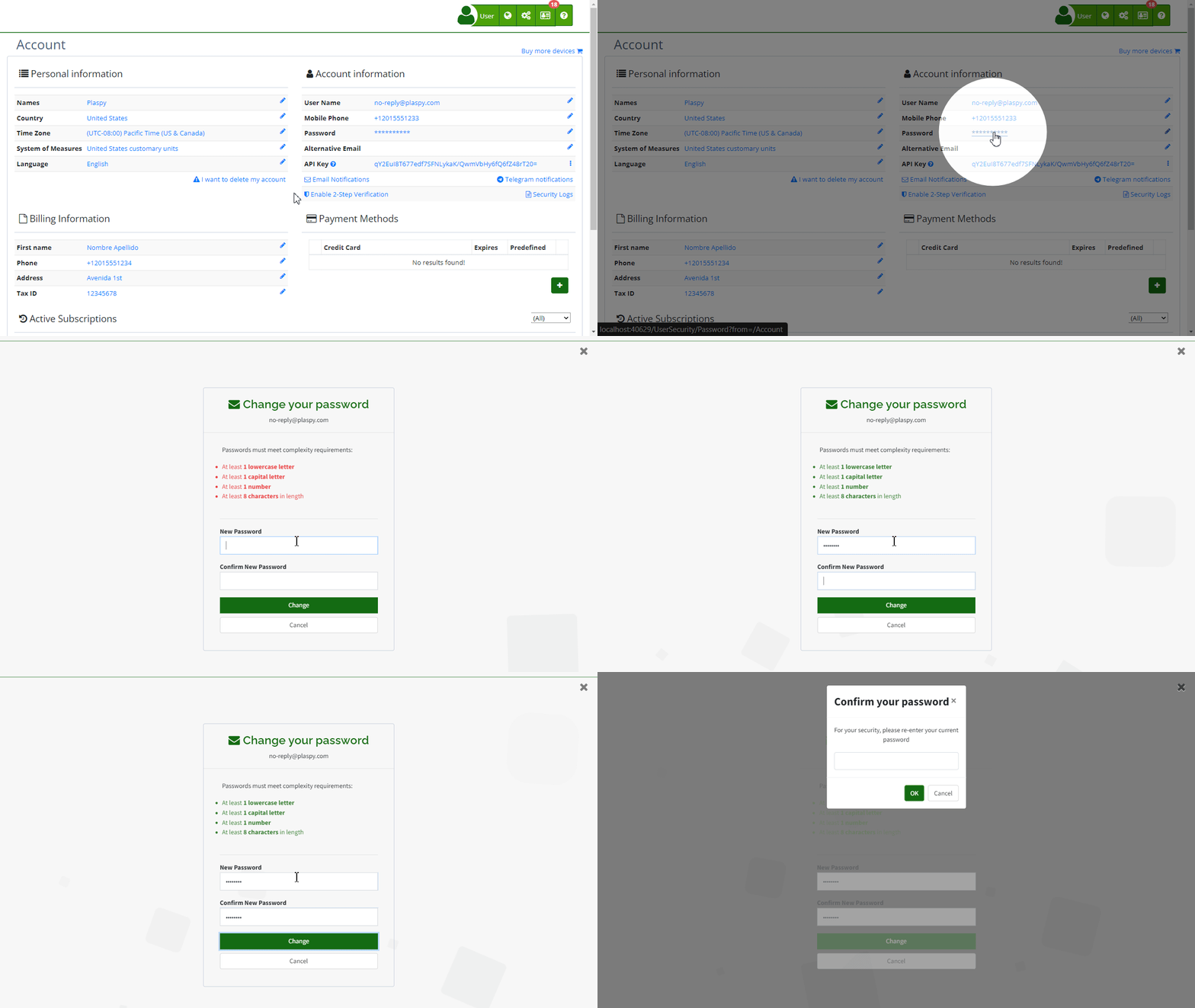
New Password Requirements
- 1 lowercase letter: Must include at least one lowercase letter (a-z).
- 1 uppercase letter: Must include at least one uppercase letter (A-Z).
- 1 number: Must contain at least one number (0-9).
- 8 characters: The minimum length of the password must be 8 characters.
Fields
- New password: Enter your new password ensuring it meets the mentioned requirements.
- Confirm new password: Re-enter the new password to confirm it.
Step-by-Step Instructions
- Access the "Account" section: In the top right corner, click on your username and select ' My Account'.
- Update your password: Under ' Account information', click on "" next to Password.
- Enter the new password: Ensure the new password meets all security requirements.
- Confirm the new password: Re-enter the new password in the confirmation field.
- Save changes: Click the "Change" button to save your new password.
Validations and Restrictions
- The new password must meet all mentioned security requirements.
- Both passwords (the new one and its confirmation) must match.
- If any validation fails, an error message will be displayed indicating which requirements were not met.
Frequently Asked Questions
- Why is it important to change my password regularly?
- Changing your password regularly helps protect your account from unauthorized access and potential security breaches.
- Changing your password regularly helps protect your account from unauthorized access and potential security breaches.
- What do I do if I forget my new password?
- If you forget your new password, you can reset it using the password recovery option on the Green-Gps login page.
- If you forget your new password, you can reset it using the password recovery option on the Green-Gps login page.
- Can I use a password that I have used before?
- It is recommended not to reuse old passwords to ensure better security.
- It is recommended not to reuse old passwords to ensure better security.
This guide ensures that you can change your password efficiently, maintaining the security of your Green-Gps account.
Index
- Welcome to Green-Gps help
- Map
- Viewing a Device's Route History
- Device Control Panel
- Detailed Device Information
- Buttons on the Map
- Details
- Timeline
- Device Menu
- GeoFences
- Bulk Alert Editing
- Enable map notifications
- Mileage Calculation
- Atributes
- Devices
- Certificates
- Marker Icon
- Information
- Sensors
- Reassign Digital Sensors
- Commands
- Alerts
- Types
- Configuration
- Reminders
- Limits
- History
- Setting Up a New Tracker
- Solution for Identifier Already in Use by Another Account
- Device Issues
- Email alerts sending limits
- Reports
- New Report
- My Account
- Password Change
- Email Notifications
- Telegram Accounts
- Update Mobile Phone Number
- Primary Email
- Alternative Email
- Enable Two-Factor Authentication (2FA)
- Security Log
- Password Recovery
- Recover Username
- Delete Your Account
- Statistics
- Activity Summary
- Groups
- Users
- Share Access
- Developers
- Enable the API
- Rest API
- Authentication
- Devices API
- GET /api/devices
- GET /api/devices/{deviceId}
- GET /api/devices/{deviceId}/lastLocation
- POST /api/devices/{deviceId}/locations
- POST /api/devices/{deviceId}/alerts
- Groups API
- GET /api/groups
- POST /api/groups
- GET /api/groups/{groupId}
- PUT /api/groups/{groupId}
- PATCH /api/groups/{groupId}
- DELETE /api/groups/{groupId}
- Users API
- GET /api/users
- POST /api/users
- GET /api/users/countries
- GET /api/users/timeZones
- GET /api/users/{userId}
- PUT /api/users/{userId}
- PATCH /api/users/{userId}
- DELETE /api/users/{userId}
Last modification: 2026-02-21 18:33:57