The " Groups " section in Green-Gps allows users to efficiently organize their devices by grouping them according to different criteria. This facilitates management, monitoring, and assignment of access permissions to devices. Groups are a fundamental tool for maintaining an organized and controlled structure of tracked assets.
To access the groups section, go to the top menu and select "", then choose " Groups ". Here you can create new groups, edit existing ones, and assign devices to each group.
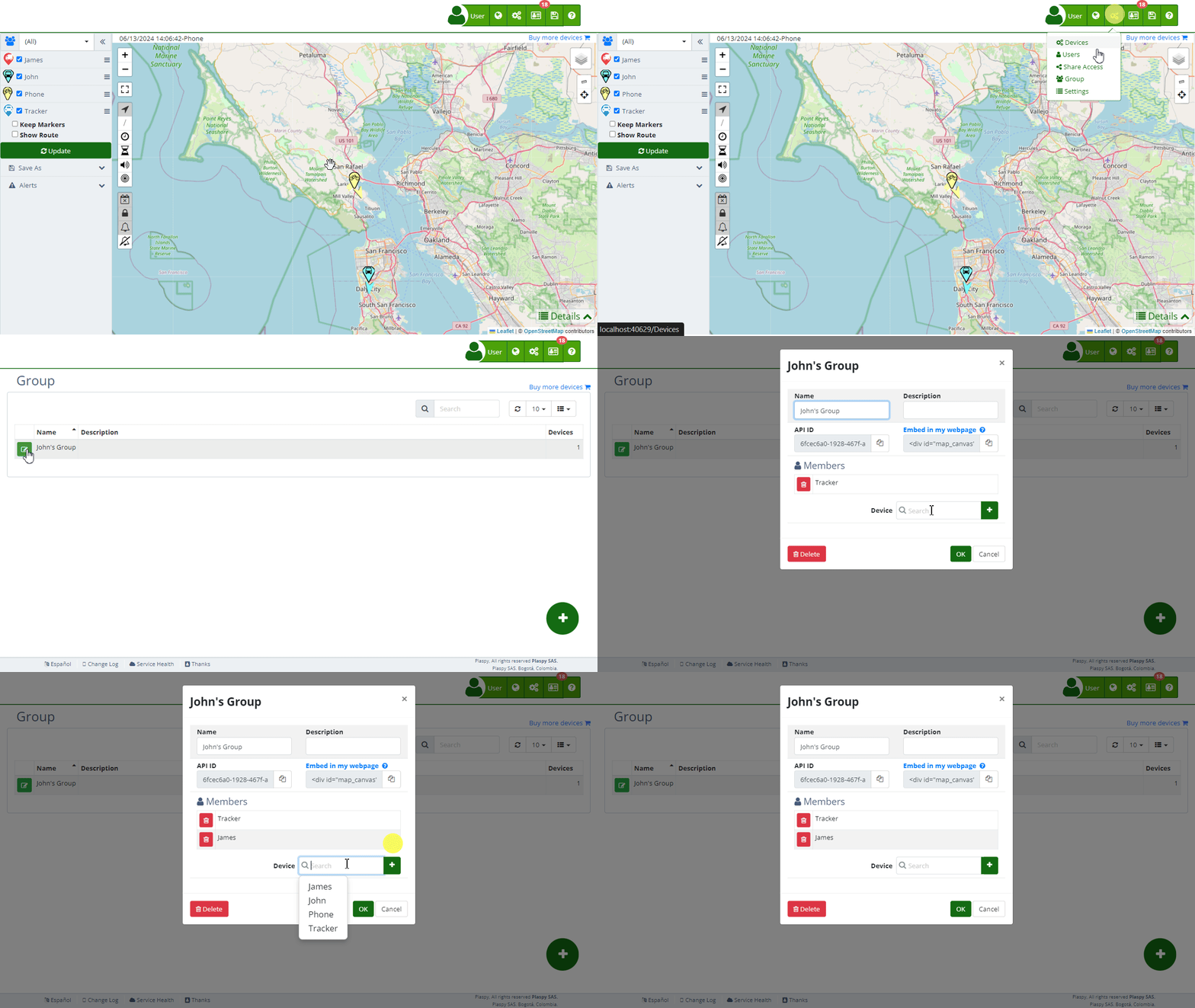
Field Descriptions
- Name: Field to enter the group name, which should be descriptive and easy to identify.
- Description: Field to add a detailed description of the group, providing additional information about its purpose or content.
- API ID: Unique identifier of the group, used for integrations and queries through the API.
- Insert into My Website: HTML code provided to embed the group's map on an external webpage.
- Members: List of devices that belong to the group.
- Device: Search field to add devices to the group.
Group Functionalities
Groups in Green-Gps allow you to perform the following actions:
- Filter on the Map: View only the devices that belong to a specific group on the map , facilitating visualization and monitoring.
- Access Control: Limit user and mobile device access to certain groups, improving security and permission management.
- Organization: Keep devices organized according to their location, function, or any other relevant criteria, improving management efficiency.
Step-by-Step Instructions
Creating a New Group
- Access the Groups Section:
- Click on "" in the top menu and select " Groups ".
- Click on "" in the top menu and select " Groups ".
- Start Group Creation:
- Click on the "" icon in the bottom right corner to open the group creation form.
- Click on the "" icon in the bottom right corner to open the group creation form.
- Complete Group Details:
- Name: Enter the group name.
- Description: Add a detailed description of the group.
- Devices: Use the search field to add devices to the group.
- Save the Group:
- Click "OK" to save the new group.
- If you wish to cancel, click "Cancel".
Editing an Existing Group
- Select the Group to Edit:
- In the list of groups , click on the edit icon () next to the group you want to modify.
- In the list of groups , click on the edit icon () next to the group you want to modify.
- Modify Group Details:
- Make the necessary changes to the group's name, description, or devices.
- Make the necessary changes to the group's name, description, or devices.
- Save Changes:
- Click "OK" to save the changes made.
- Click "OK" to save the changes made.
Validations and Restrictions
- Group Name: Make sure to enter a unique and descriptive group name.
- Devices: You must add at least one device to the group for it to be valid.
Frequently Asked Questions
- How can I add devices to a group?
- Use the search field in the group edit form to find and add devices to the group.
- Use the search field in the group edit form to find and add devices to the group.
- Can I assign a device to multiple groups?
- Yes, a device can belong to multiple groups, allowing you to organize it according to different criteria.
- Yes, a device can belong to multiple groups, allowing you to organize it according to different criteria.
- What if I want to delete a group?
- Click on the delete icon () next to the group you want to delete. Confirm the deletion when prompted.
- Click on the delete icon () next to the group you want to delete. Confirm the deletion when prompted.
- How can I view only the devices of a group on the map?
- Select the desired group in the map filter to view only the devices that belong to that group.
- Select the desired group in the map filter to view only the devices that belong to that group.
- Is it possible to share a group with other users?
- Yes, you can set access permissions to share the group with other users , allowing them to view and manage the group's devices.
Index
- Welcome to Green-Gps help
- Map
- Viewing a Device's Route History
- Device Control Panel
- Detailed Device Information
- Buttons on the Map
- Details
- Timeline
- Device Menu
- GeoFences
- Bulk Alert Editing
- Enable map notifications
- Mileage Calculation
- Atributes
- Devices
- Certificates
- Marker Icon
- Information
- Sensors
- Reassign Digital Sensors
- Commands
- Alerts
- Types
- Configuration
- Reminders
- Limits
- History
- Setting Up a New Tracker
- Solution for Identifier Already in Use by Another Account
- Device Issues
- Email alerts sending limits
- Reports
- New Report
- My Account
- Password Change
- Email Notifications
- Telegram Accounts
- Update Mobile Phone Number
- Primary Email
- Alternative Email
- Enable Two-Factor Authentication (2FA)
- Security Log
- Password Recovery
- Recover Username
- Delete Your Account
- Statistics
- Activity Summary
- Groups
- Users
- Share Access
- Developers
- Enable the API
- Rest API
- Authentication
- Devices API
- GET /api/devices
- GET /api/devices/{deviceId}
- GET /api/devices/{deviceId}/lastLocation
- POST /api/devices/{deviceId}/locations
- POST /api/devices/{deviceId}/alerts
- Groups API
- GET /api/groups
- POST /api/groups
- GET /api/groups/{groupId}
- PUT /api/groups/{groupId}
- PATCH /api/groups/{groupId}
- DELETE /api/groups/{groupId}
- Users API
- GET /api/users
- POST /api/users
- GET /api/users/countries
- GET /api/users/timeZones
- GET /api/users/{userId}
- PUT /api/users/{userId}
- PATCH /api/users/{userId}
- DELETE /api/users/{userId}
Last modification: 2026-02-21 18:33:39