The Commands section in Green-Gps allows users to configure the available commands for their tracking devices . This configuration is essential for preparing the devices for specific actions that can be executed later from the map. Green-Gps automatically adds the default commands for the tracker, but users can modify them according to their needs.
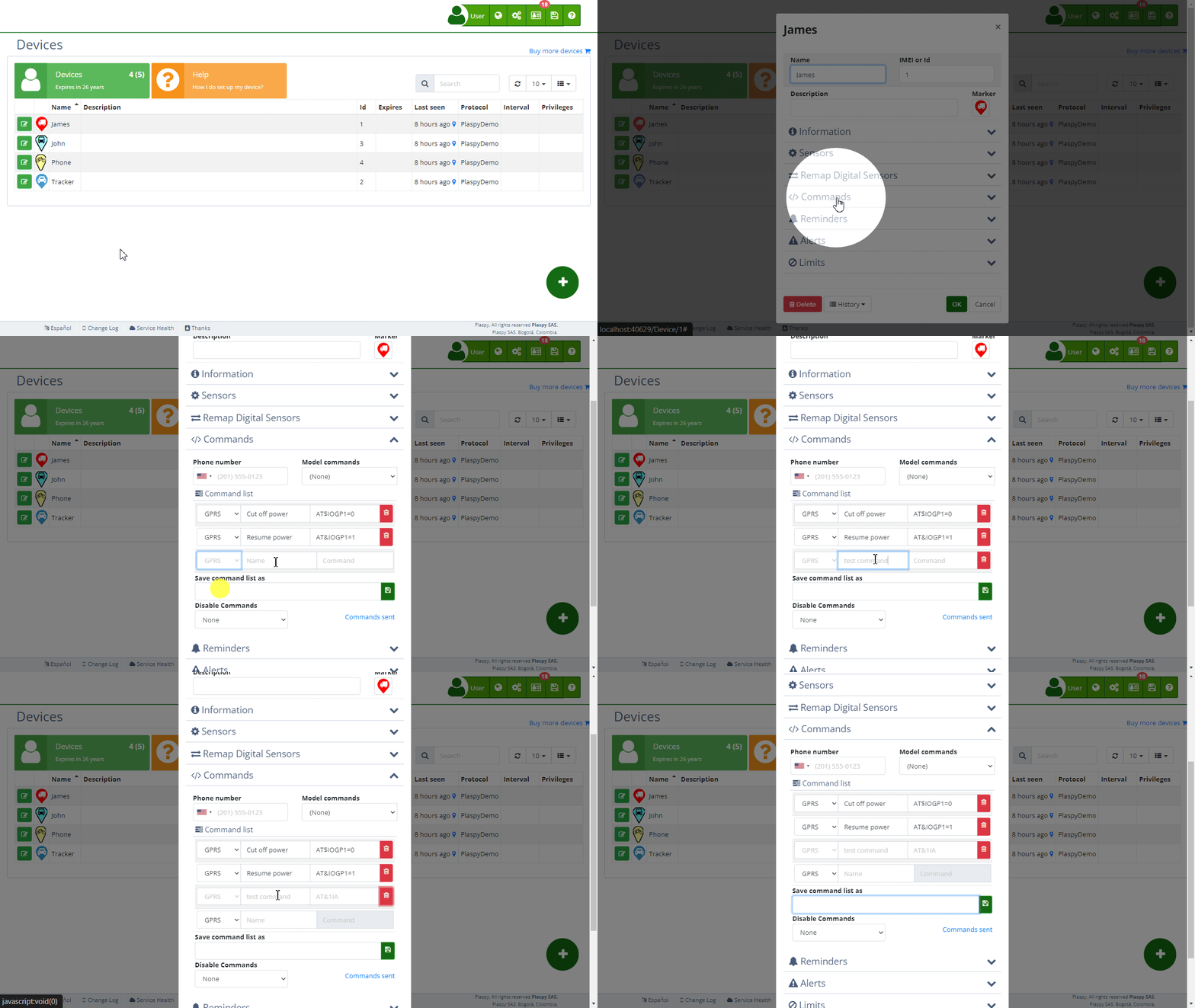
Field Descriptions
- Command Name: This field shows the name of the command that will be configured for the device. It can be a specific action like "Cut Power" or "Restore Power".
- Command Code: This field contains the exact code that the device will recognize to execute the corresponding action.
- Command Type: Indicates the type of command being configured (SMS, GPRS, Calls).
Types of Commands
- SMS Commands: These commands are sent as SMS text messages to the tracking device. If the user has SMS balance in Green-Gps, the commands will be sent from Green-Gps. Otherwise, they will be sent from the mobile app using the user's mobile phone plan.
- GPRS Commands: These commands are sent via the GPRS data network. They are useful for devices with an internet connection, allowing faster and more efficient communication.
- Call Commands: These commands initiate a phone call to the device. The call will be opened from the phone's default application with the phone number configured in the tracker.
Accessing the Commands Section
- Navigate to the " Devices " section from the main panel ().
- Select the device with the edit icon (), next to the device name, for which you want to configure the commands.
- Click on the " Commands" option to expand this section and view the available commands.
Step-by-Step Instructions
Configuring a Command for the Device
- Select the device from the device list with the edit icon (), next to the device name.
- In the " Commands" section, locate the command you want to configure.
- Review the command name, command code, and command type to ensure it is correct.
- Click "OK" to save the command configuration for the device.
Example: Configuring the "Cut Power" Command
- Select the device from the device list.
- In the " Commands" section, find the "Cut Power" command.
- Verify that the command code is "stop123456" and that the command type is SMS.
- Click "OK" to configure the command for the device.
Disabling Commands
- Select the device from the device list.
- In the " Commands" section, identify the command you want to disable.
- Click the option to disable the command. This will prevent the command from appearing on the map.
- Click "OK" to apply the changes.
Restoring Default Commands
- Select the device from the device list.
- In the " Commands" section, delete all configured commands.
- Green-Gps will automatically re-add the default commands for the tracker.
- Click "OK" to confirm the restoration of the default commands.
Saving Commands as a Template
- Select the device from the device list with the edit icon (), next to the device name.
- Configure the necessary commands.
- Click "Save command list as".
- Assign a name to the template and save it. This template can be applied to other devices later to add the commands from the default commands list.
Checking Sent Commands
- Navigate to the "Devices" section from the main panel ().
- Select the device for which you want to check the sent commands.
- Click on the "Commands Sent" link to view the command history, including when, who sent them, and the status of the commands.
Frequently Asked Questions
- What are commands in Green-Gps?
- Commands in Green-Gps are specific instructions configured to be sent to tracking devices from the map.
- Commands in Green-Gps are specific instructions configured to be sent to tracking devices from the map.
- How do I know which commands are available for my device?
- The list of available commands is shown in the "Commands" section of each device. Review this list to see all the actions you can configure.
- The list of available commands is shown in the "Commands" section of each device. Review this list to see all the actions you can configure.
- What should I do if a command does not work?
- If a command does not work, verify that the command code is correct and that the device is turned on and connected. If the problem persists, contact Green-Gps technical support.
- If a command does not work, verify that the command code is correct and that the device is turned on and connected. If the problem persists, contact Green-Gps technical support.
- Can I add new commands?
- The available commands depend on the capabilities of the tracking device. If you need to add a new command, consult the device documentation or contact Green-Gps technical support for assistance.
- The available commands depend on the capabilities of the tracking device. If you need to add a new command, consult the device documentation or contact Green-Gps technical support for assistance.
- What types of commands can be configured in Green-Gps?
- SMS: Text messages sent to the device.
- GPRS: Commands sent via the data network.
- Calls: Initiates a phone call to the device.
- How are commands sent in plain text or hexadecimal?
- Commands can be configured in plain text, if the tracker supports it, or in hexadecimal format, for example, 0x686F6C61 to send "hola". Both options are supported by Green-Gps.
Index
- Welcome to Green-Gps help
- Map
- Viewing a Device's Route History
- Device Control Panel
- Detailed Device Information
- Buttons on the Map
- Details
- Timeline
- Device Menu
- GeoFences
- Bulk Alert Editing
- Enable map notifications
- Mileage Calculation
- Atributes
- Devices
- Certificates
- Marker Icon
- Information
- Sensors
- Reassign Digital Sensors
- Commands
- Alerts
- Types
- Configuration
- Reminders
- Limits
- History
- Setting Up a New Tracker
- Solution for Identifier Already in Use by Another Account
- Device Issues
- Email alerts sending limits
- Reports
- New Report
- My Account
- Password Change
- Email Notifications
- Telegram Accounts
- Update Mobile Phone Number
- Primary Email
- Alternative Email
- Enable Two-Factor Authentication (2FA)
- Security Log
- Password Recovery
- Recover Username
- Delete Your Account
- Statistics
- Activity Summary
- Groups
- Users
- Share Access
- Developers
- Enable the API
- Rest API
- Authentication
- Devices API
- GET /api/devices
- GET /api/devices/{deviceId}
- GET /api/devices/{deviceId}/lastLocation
- POST /api/devices/{deviceId}/locations
- POST /api/devices/{deviceId}/alerts
- Groups API
- GET /api/groups
- POST /api/groups
- GET /api/groups/{groupId}
- PUT /api/groups/{groupId}
- PATCH /api/groups/{groupId}
- DELETE /api/groups/{groupId}
- Users API
- GET /api/users
- POST /api/users
- GET /api/users/countries
- GET /api/users/timeZones
- GET /api/users/{userId}
- PUT /api/users/{userId}
- PATCH /api/users/{userId}
- DELETE /api/users/{userId}
Last modification: 2026-02-21 18:33:04